
Menu
Close
  • Why PDF Solutions
  • Products
    • Exensio® Analytics Platform
      • Exensio Battery
    • Sapience™
    • Advanced Insights for Manufacturing
    • Design-for-Inspection™ System
    • Characterization Vehicle® System
    • secureWISE®
    • Cimetrix® Connectivity & Control
    • Industry Standards
    • Technology
    • Partners
  • Services
    • Overview
    • Integrated Yield Ramp
    • Professional Services
    • Value Added Services
  • Resources
    • All Resources
    • Press Releases
    • Blog
    • Users Conferences
    • Keynotes & Papers
    • White Papers & eBooks
    • News
    • Events
    • Webinars
    • Videos
    • Applications
    • Training
  • Company
    • Overview
    • Management Team
    • Board of Directors
    • Corporate Governance
    • Careers
    • Investor Relations
    • Locations
    • Trust Center
  • Support
    • Overview
    • Support Portal
    • Software Downloads
  • Contact
  • Schedule A Demo
  • Login
  • Support
    • Overview
    • Support Portal
    • Software Downloads
  • Contact
  • Schedule A Demo
Login below to view protected resources.

Lost your password?
Forgotten Password
Cancel
  • Why PDF Solutions
  • Products
    • Exensio® Analytics Platform
      • Exensio Battery
    • Sapience™
    • Advanced Insights for Manufacturing
    • Design-for-Inspection™ System
    • Characterization Vehicle® System
    • secureWISE®
    • Cimetrix® Connectivity & Control
    • Industry Standards
    • Technology
    • Partners
  • Services
    • Overview
    • Integrated Yield Ramp
    • Professional Services
    • Value Added Services
  • Resources
    • All Resources
    • Press Releases
    • Blog
    • Users Conferences
    • Keynotes & Papers
    • White Papers & eBooks
    • News
    • Events
    • Webinars
    • Videos
    • Applications
    • Training
  • Company
    • Overview
    • Management Team
    • Board of Directors
    • Corporate Governance
    • Careers
    • Investor Relations
    • Locations
    • Trust Center
Blog

How to Configure External Storage for Cimetrix CIMConnect Logging

Categories: 
Industry Trends
,
Equipment Solutions
,
Industry Standards

Tags: 
Equipment Connectivity
,
Smart Manufacturing/Industry 4.0
,
SEMI Standards
,
SECS/GEM

Posted on July 27, 2023 by Ian Ryu

This blog was originally posted on cimetrix.com

Have you experienced a lack of storage space on your equipment?

There can be many reasons for this, and one of them is a lack of space for saving logs.

One of our Cimetrix CIMConnect customers had this issue and asked if there is a way to add storage to their tool. The engineer commented that there are no available USB slots on their equipment computer. Therefore, he got permission to add a network drive to their system.

How to configure an external network drive for CIMConnect logging

  1. Connect an external storage device to the network and you may see it in your File Explorer.

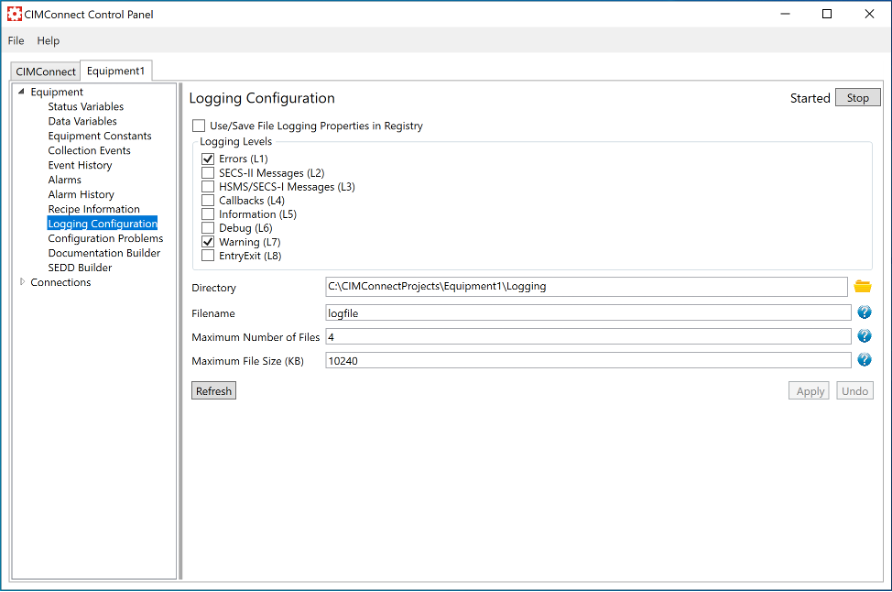
  2. Run CIMConnect Control Panel

    1. Go to the equipment tab (“Equipment1” in this view)
    2. Go to “Logging Configuration” under “Equipment” menu.
    3. Click on the folder icon next to the “Directory” text box.
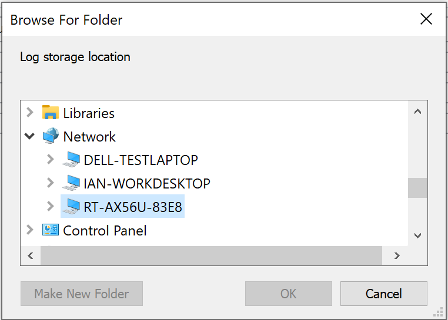
    4. In the “Browse For Folder” window, find your network drive.Here’s tricky part: you may find one under your network, not a mapped one.  It will give an absolute path name, such as “\\RT-AX56U-83E8\Cimetrix_Ian\CIMConnect Logs”
  3. If you still cannot see any log files created in that network drive directory.

    In this case, please follow the steps below to register EMService as a COM Local Server.

    1. Open Windows Command Prompt as an Administrator.
    2. Type “EMService.exe /RegServer” (without quotation marks) and hit Enter.
    3. Restart your EMService: go to Windows “Services” and select EMService then click “Restart”.
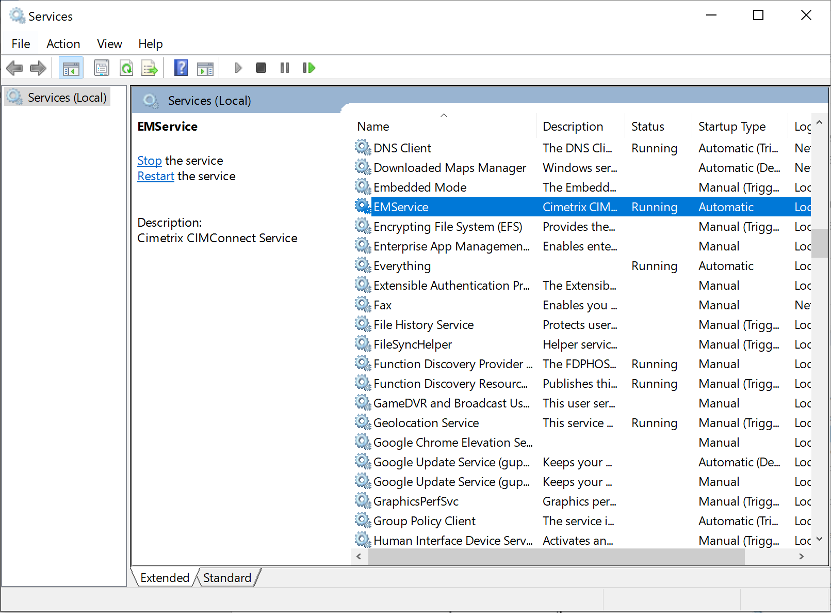
These steps set a network drive as your extended CIMConnect storage.

To Summarize:

  1. Connect an external drive to your network.
  2. Use CIMConnect Control Panel to find and set up the added drive. Don’t forget to configure one in the network, not a mapped drive.
  3. Register CIMConnect’s EMService as your COM local server.
  4. Restart EMService and enjoy the extra storage.

As I mentioned at the beginning, this is a good solution for those who do not have sufficient storage in their existing equipment control system. It is usually difficult to replace the entire PC on your equipment, but external storage can be as simple as I described in this posting.

Share on:
  • Facebook
  • Twitter
  • LinkedIn
« How to Dynamically Generate ECVs in a CIMControlFramework Implementation
Introducing the “GEM OPC Connector” Application »

More From Author

  • Korea SSCA Updates

Categories

  • Data, Analytics, and AI
  • Events
  • Industry Trends
  • Subject Matter Experts
  • Equipment Solutions
  • Manufacturing Integration
  • Partners
  • Industry Standards
  • Company Insights
  • Podcast

Tags

  • Equipment Connectivity
  • Smart Manufacturing/Industry 4.0
  • SEMI Standards
  • SECS/GEM

Ready to get Started with PDF Solutions?

Learn how we can transform your manufacturing data into actionable intelligence and improve your product yield, quality, and reliability

Schedule A Demo Contact Us

Corporate Headquarters
2858 De La Cruz Blvd.
Santa Clara, CA 95050 USA

Phone: 408-280-7900

Fax: 408-280-7900

Follow Us on Social Media

  • Facebook
  • Twitter
  • LinkedIn
  • Instagram

© 2026 PDF Solutions. All rights reserved.

  • Privacy Policy
  • Terms of Service
  • 日本語
  • 한국어
  • 中文 (简体)
  • 中文 (繁體)